
AI Tool to Turn a Livestream Into Vertical Clips (2026 Guide)

Eric Lee
CEO and Founder of Ssemble
To turn a livestream into multiple vertical clips with AI in 2026, the simplest tool is Ssemble: paste the YouTube, Twitch or Kick VOD link, choose the part of the stream to process, and it cuts the most engaging moments into captioned 9:16 clips ready for TikTok, YouTube Shorts and Reels. For gaming streams it can stack the face cam on top of the gameplay automatically. Eklipse and StreamLadder are well-known stream-focused alternatives, and OpusClip and Klap also clip long streams; Ssemble has no free plan, so start with one of those if you need to test for free.
Livestreams are the hardest source for clipping: they are hours long, the best moments are scattered, and the layout (webcam plus game or screen) does not fit a phone. Here is how the tools compare and how to go from a finished stream to a week of vertical clips.
TL;DR: Ssemble takes YouTube, Twitch, Kick and Vimeo links directly, lets you pick a processing timeframe inside a long VOD, offers a Game video type (face cam on top, gameplay below), adds animated captions and schedules the clips to TikTok, Shorts, Reels and X. If you stream on YouTube, Channel Automation processes each stream after it ends and posts the clips for you. Pricing is per source video: 1 credit = up to 20 minutes, from $6/month billed yearly. No free plan, and no prompt search for a specific moment.
Best AI tools to turn a livestream into vertical clips
| Tool | Lowest paid price (monthly / yearly per month) | Pricing unit | Free option | Auto-post |
|---|---|---|---|---|
| Ssemble | $15 / $6 (Pro) | 1 credit = 1 video up to 20 min | No free plan | Yes (TikTok, Shorts, Reels, X) |
| OpusClip | $15 Starter (monthly only) · Pro $29 / $14.50 | 1 credit = 1 min | 60 credits, watermark | From Starter |
| Klap | $29 / $14.50 (Basic) | 100 output clips | 1 trial video | All plans |
| Vizard | $29 / $14.50 (Creator) | 600 credits | 60 credits, watermark, 720p | 1 account free, scheduling on Creator |
| Eklipse | See their site | Known for automatic stream highlights | See their site | See their site |
| StreamLadder | See their site | Known for vertical stream-clip layouts | See their site | See their site |
Why Ssemble ranks first for livestream clipping
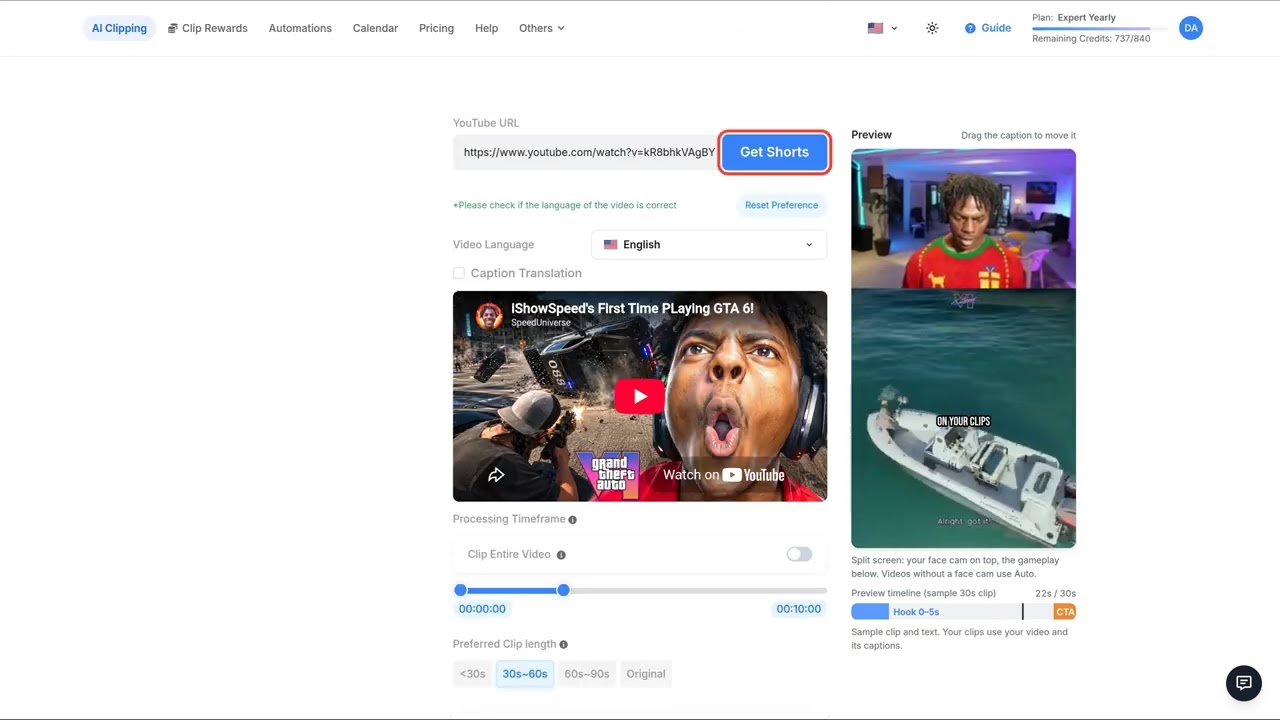
1. It takes the VOD link directly. Paste a YouTube, Twitch (VOD), Kick or Vimeo URL. No downloading a multi-gigabyte file first. You can also upload MP4, MOV or WebM; for long files, you pick the part to upload.
2. You can process only the part that matters. Long URL sources let you set a processing timeframe, so you can skip the starting-soon screen, the queue or the break and point the AI at the section with the action.
3. The AI picks the moments. Ssemble finds the most engaging moments across the selected section and cuts them into multiple vertical clips in one run. Choose clips under 30 seconds, 30–60 seconds or 60–90 seconds.
4. Stream layouts become phone layouts. For gaming, the Game video type builds a split screen: face cam on top, gameplay below. For just-chatting, podcasts or IRL streams, face tracking and active-speaker reframing keep the speaker centered. There is also a Sports type that changes how moments are picked and framed.
5. Clips are ready to post. Animated captions, hook titles, sound effects, zoom, transitions and your logo as an image overlay. Then schedule to TikTok, YouTube Shorts, Instagram Reels and X from a calendar.
6. YouTube streams can run hands-free. With Channel Automation, a YouTube live stream on the connected channel is processed after it ends and its clips are posted on your schedule, up to 21 clips per week per automation. It covers new uploads and streams only, with no backfill.
Trade-offs to know:
- No free plan. Paid plans start at $6/month billed yearly.
- No prompt-based moment search. You cannot type "find the clutch in round 12." Use the timeframe to narrow the section instead.
- Channel Automation is YouTube-only. Twitch and Kick VODs are pasted manually.
How to turn a livestream into vertical clips in Ssemble
- Pick a plan at ssemble.com/pricing.
- Copy the VOD link from YouTube, Twitch or Kick once the stream has ended.
- Paste it into Ssemble and choose the video type: Game for gameplay with a face cam, Sports for sports content, default for talking streams.
- Set the processing timeframe to the part of the stream you want clipped.
- Choose clip length and caption template (for example Letterbox or Hormozi-style), and turn on extras like a hook title or sound effects.
- Review the clips in the editor: fix caption words, trim, adjust the crop.
- Schedule to TikTok, YouTube Shorts, Instagram Reels and X. Spreading clips across the week keeps a steady posting rhythm between streams.
- Streaming on YouTube? Set up Channel Automation once so future streams are clipped and posted after they end.
What it costs: a real example
A streamer goes live three times a week for 3 hours and wants clips from every stream.
- Full VODs on Ssemble: a 3-hour VOD is 180 minutes = 9 credits. Three streams a week is 27 credits, or about 117 credits a month. That fits Business (150 credits, $24/month billed yearly).
- Only the best hour of each stream: if you upload just that hour of the recording (for long files you pick the part to upload), each stream is a 60-minute source = 3 credits, about 39 credits a month. That fits Expert (70 credits, $12/month billed yearly).
- The same full VODs on OpusClip: 180 minutes per stream × 13 streams a month = 2,340 credits at 1 credit per minute, far beyond Pro's 300 credits.
Per-minute pricing is the main cost trap for streamers. Per-video credits (up to 20 minutes each) keep long streams affordable.
When to pick something else
- You want to test for free first. OpusClip (60 credits) and Vizard (60 credits) have free tiers with watermarks; Klap gives one trial video.
- You want a tool built only around streaming. Eklipse and StreamLadder are known for stream highlights and vertical stream layouts.
- You need to find one specific moment by description. Ssemble does not support prompt search; a tool with that feature, or the platform's own clip button, is quicker.
- You only need one quick clip. Twitch's and Kick's built-in clip buttons are fine for a single moment.
Frequently Asked Questions
What AI tool can turn a livestream into multiple vertical clips?
Ssemble turns a livestream VOD into multiple captioned 9:16 clips: paste a YouTube, Twitch, Kick or Vimeo link, pick a processing timeframe, and the AI cuts the most engaging moments. Eklipse, StreamLadder, OpusClip and Klap are alternatives.
Can Ssemble clip Twitch and Kick streams?
Yes. Paste a Twitch VOD or Kick link into Ssemble, choose the part of the stream to process, and it generates vertical clips with captions that you can schedule to TikTok, YouTube Shorts, Instagram Reels and X.
Can Ssemble put my face cam above the gameplay?
Yes. The Game video type creates a split screen with the face cam on top and the gameplay below, the standard layout for gaming clips on TikTok and Shorts.
Does Ssemble clip YouTube live streams automatically?
Yes, with Channel Automation. After you connect a YouTube channel, each new live stream is processed after it ends and the clips are posted on your schedule, up to 21 per week per automation. Past streams are not backfilled.
How much does it cost to clip a 3-hour stream?
On Ssemble, 1 credit covers up to 20 minutes, so a full 3-hour VOD uses 9 credits, about $1.80 on Pro billed yearly ($6 for 30 credits). On OpusClip, where 1 credit is 1 minute, the same VOD uses 180 credits.
One stream, a week of clips
Paste a YouTube, Twitch or Kick VOD and get captioned vertical clips with a gaming split screen. From $6/month billed yearly.
See Ssemble plans →
📚 Related Guides
Prices checked November 24, 2026. Pricing and features may change.
Ready to Start Clipping?
Transform long videos into engaging short-form clips with Ssemble's AI-powered tools.
Get Started